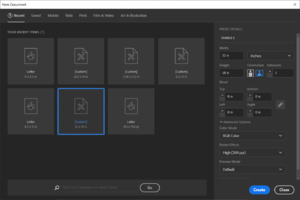
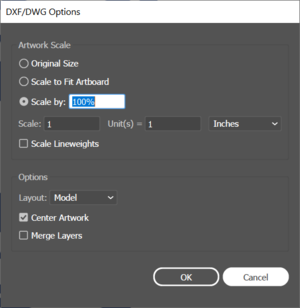
# '''Open Illustrator and create a new file.''' The size of the document should be 32" by 18", and the color mode should be set to RGB. See Fig. 1 for detailed settings. [[File:Image.png|alt=Illustrator file creation|thumb|Fig. 1]]or '''Open DXF file.''' Make sure the image was created in Imperial Units or set Scale: 1 Units = 1 [drawing units]. (Fig. 2) Once open, go to File ->Document Setup, and click "Edit Artboards". Make sure the width is set to 32" and the height is set to 18"
# [[File:File Open.png|thumb|Fig. 2]]<br />
Revision as of 17:20, 3 June 2021
Available in the Student Machine Shop, the laser engraver is a Universal Laser Systems PLS6.75. It is capable of engraving on glass, stone, plastics, wood, and coated metals, and cutting through wood and plastics up to 1/2" (12mm).
Software
When using the laser engraver, it presents itself to the computer as a generic printer. Most commonly, Adobe Illustrator is used to generate print files for the laser cutter.
Materials
Material
Engrave
Cut (Max thickness)
Acrylic
✓
1/2"
Plywood
✓
1/4"
Delrin
✓
1/4"
Polystyrene
✓
1/4"
Anodized Aluminum
✓
x
Powdercoated Steel
✓
x
PVC
NEVER
NEVER
Instructions
Open Illustrator and create a new file. The size of the document should be 32" by 18", and the color mode should be set to RGB. See Fig. 1 for detailed settings. Fig. 1or Open DXF file. Make sure the image was created in Imperial Units or set Scale: 1 Units = 1 [drawing units]. (Fig. 2) Once open, go to File ->Document Setup, and click "Edit Artboards". Make sure the width is set to 32" and the height is set to 18"